
Welcome to Microsoft 365 Copilot

This will enable your child to access their student e-mail and our educational platform, Microsoft Teams. Students can use the Microsoft Outlook and Teams apps on their phone or other device, or they can log in at www.microsoft365.com.
To access your student e-mail and teams account click the links below.


Need help? If you need assistance e-mail j.barry@northmonastery.ie.
How Do I Log Into My Student Account?

- Go to www.microsoft365.com
- Click Sign In
- Enter your student e-mail address
- Enter your password
⚠️ Forgot your password?
Let your Year Head or IT Coordinator know — they can reset it for you.
You cannot reset the password yourself.
Once I’m Logged In, How Do I Access My E-mail and Other Apps?
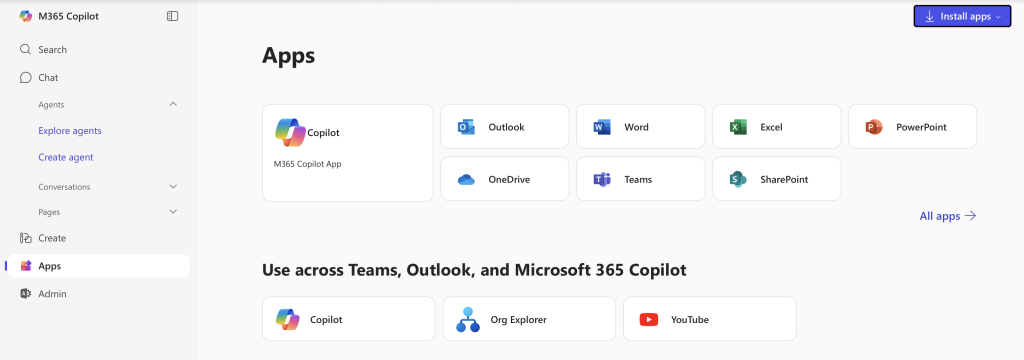
Once you’ve logged into your account, you’ll see a screen similar to the one shown below. From here, you can access your student e-mail through Outlook, use our educational platform via Microsoft Teams, and create presentations using PowerPoint, which teachers may ask you to do for assignments.
📂 If this screen doesn’t appear, click the menu icon on the left-hand side and select Apps to find what you need.
How Do I Access My Student E-mail and Teams on My Phone?
To use your student e-mail and Microsoft Teams on your phone:
-
Go to the App Store (iPhone/iPad) or Google Play Store (Android).
-
Search for and download:
-
Microsoft Outlook (for e-mail)
-
Microsoft Teams (for classes and assignments)
-
-
Open each app and sign in using your student e-mail and password.
💡 Once signed in, you’ll be able to:
-
Read and send school e-mails in Outlook
-
Join classes, view assignments, and message teachers in Teams
Let me know if you’d like a simplified version for a handout or visual step-by-step guide.
How to access your student e-mail
To access your student e-mail go to the following website microsoft365.com. Use your student e-mail and password to log-in. You can also download the app Microsoft Outlook for your mobile, tablet, or iPad from either Google Play or the App Store.

How to access your Microsoft Teams account

- To access your account you will need a device (tablet/PC/laptop/iPad/mobile/playstation/XBox) and access to wifi.
- In your web browser go to microsoft365.com and log in to your account using your unique student e-mail and password.
Additional information:
Mobile:
- Students can download the Microsoft Teams App through the Android and App Store.
Tablet/iPad:
- Students can download the Microsoft Teams App through the Android and Apple Store.
- Alternatively, students can access Microsoft Teams using an internet browser such as Google Chrome, Microsoft Edge, or Safari. Use your browser to sign-in here.
Laptop/PC:
- Depending on your model of Laptop/PC you can download the Microsoft Teams App or alternatively you can access the web or app version by going here.
XBOX:
- You can connect to Microsoft Teams via XBOX by using Microsoft Edge.
PlayStation:
- You can connect to Microsoft Teams via PlayStation by going to the internet browser icon (it is the WWW with dots around it). In the internet browser search for Microsoft Teams or go to https://www.microsoft.com/en-ie/microsoft-365/microsoft-teams/group-chat-software.
Guidelines for Parents & Guardians:
Guidelines for Students:
E-books
Many of the textbooks your son uses in class are available in an e-book format.
Please follow the instructions below.
- You will need to know the name of the book
- You will need to know the name of the book publisher
- You will need a unique code, this is usually found from the inside cover or back cover of the book (if you do not have access to the physical book, some book publishers are providing free access to books due to remote learning you will need to check directly with the individual book publisher).
A selection of book publishers:
See information here.
- Register with FolensHIVE and redeem your first eBook with the unique licence code from the inside cover of your textbook.
- Download the FolensHIVE app from the relevant app store on your device.
- Log-in to your FolensHIVE account on the app to use your eBook or redeem additional eBooks.
- Click or tap the download button underneath the eBook cover to download.
See information here.
See information here.
See information here.